Setting the Animate Speed and Toggling the Bubble Help Display
By default, the speed of animate code execution is fast.
You can set the speed that you require for animated code execution.
To set the speed for the Animate mode
-
Select the Preferences command from the Options menu.
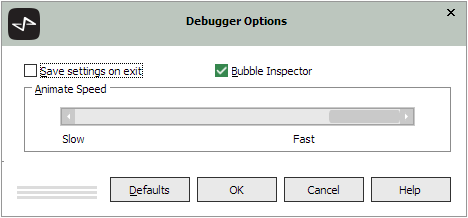
The Debugger Options dialog, shown in the following image, is then displayed.
-
If you want to use the changed settings in future Jade Debugger sessions, check the Save settings on exit check box. By default, the settings are not saved when you exit from the Jade Debugger.
The Save settings on exit check box also enables you to save the watches that have been set and the size and position of windows that you resize or reposition.
-
Uncheck the Bubble Inspector check box if you do not want the value of the variable or object over which the mouse is positioned in the Method Source window displayed in bubble help. This bubble help is displayed by default.
To optimize performance when stepping through code in thin client mode, it may be desirable to disable bubble help if the connection speed is low.
-
Click the Defaults button if you want to restore the settings to the Jade Debugger default values and the default debugger window settings. The default values are restored only when you click this button and then the OK button.
-
In the Animate Speed group box, drag the scroll box towards Slow or Fast, to increase or decrease the animate speed. Alternatively, use the right arrow or left arrow key.
-
Click the OK button to set the selected animate speed or to restore the default values. Alternatively, click the Cancel button to abandon your selection.