Previewing Print Output
The print preview facility of the Jade Report Writer Designer application enables you to review your report on your screen before you commit it to print.
When previewing print output, you can browse the report page by page and select a view of the page layout in addition to the actual size view.
You can also search to find text in your report preview, to check on details of the report output before reporting. For details, see "Searching Your Report Preview", in the following subsection.
The query result set is saved and reused for reporting in preview. This is done to make the preview more efficient, since complex queries can take many minutes to run and previews are often required to check formatting and layout changes only.
Query results are saved for each report profile rather than each report.
The result set is automatically reused unless new database items are required, under the following conditions.
-
A new database item is used in the report design
-
The profile selection, group, or sort criteria are changed
-
The value of a parameter used in a profile selection is changed
-
The report query concurrency strategy, resource, or preview limit options are changed
-
You select the Refresh Preview command
The following changes do not require a new query from the database.
-
Adding, changing, or deleting a parameter (other than changing the value, as above), script, or summary
-
Removing a database item from the report design
To preview a report, perform one of the following actions
-
Select the Refresh Preview command from the File menu.
-
Select the Preview tab on your Report Designer window.
A preview of the current report is then displayed, as shown in the following image.
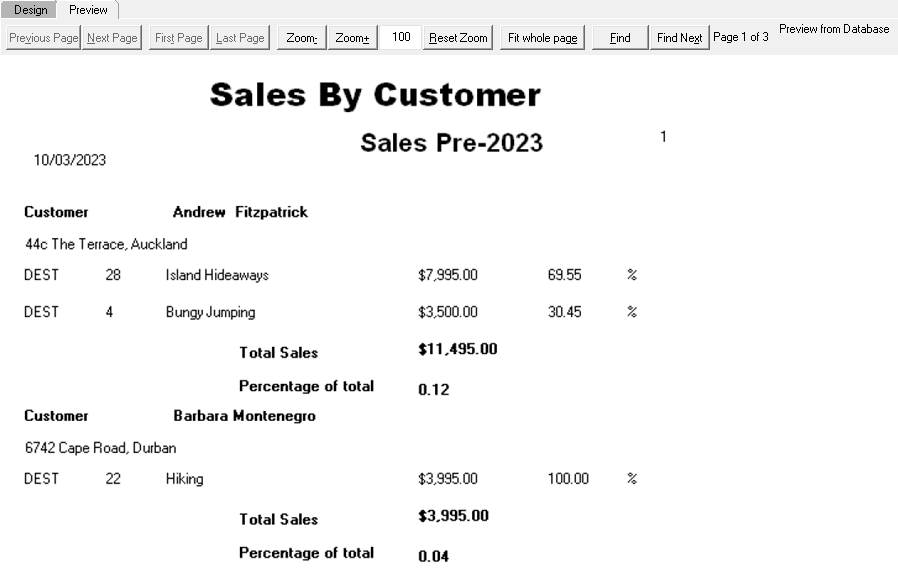
A progress dialog is displayed while the print preview is being built. Click the Cancel button to cancel the print preview. The Jade Report Writer Designer application abandons the print preview if it is in the database reading phase or displays the pages that have been built so far if it is in the printing phase.
The report status is displayed on the toolbar above the preview pane. The first status line displays Saved Query, to indicate that the preview is based on a saved query, or Preview from Database, to indicate that the preview is based on data read from the database. The second status line indicates if any preview limits have been reached or if the preview has been cancelled.
To navigate around your print preview display, perform one of the following actions
-
To view the previous page before the current page, click the Previous Page button.
-
To view the next page after the current page, click the Next Page button.
-
To view the first page of the report, click the First Page button.
-
To view the last page of the report, click the Last Page button.
You can change the size of your report preview display to gain an overview of the layout.
To alter the size of the display page, perform one of the following actions
-
To obtain a view of the whole page, click the Fit whole page button. Click this button to scale the whole preview page to fit into the preview window.
-
With the focus in the print preview window, your cursor becomes a magnifying glass with a minus sign or a plus sign inside it.
To:
-
Increase the size of the page view by 20 percent, click the left mouse button.
-
Reduce the size of the page view by 20 percent, hold down the Shift key and click the left mouse button.
Alternatively, use the controls listed in the following table to customize the zoom of the print preview window.
Control Action Zoom- button Reduces the size of (or zooms out from) the page in the preview area. Each click zooms out by an increment of 20 percent down to a minimum of 20 percent. The text box at the right of the Zoom+ button displays the zoom level of the current view. Zoom+ button Enlarges the size of (or zooms in to) the page in the preview area. Each click zooms in by an increment of 20 percent up to a maximum of 500 percent. The text box at the right of the Zoom+ button displays the zoom level of the current view. Text box at the right of the Zoom+ button Displays the zoom level of the current view. In addition, it enables you to enter a custom zoom level in the range 20 though 500 (percent). The zoom changes to the specified value one second after you enter it. Reset Zoom button Resets the preview to the actual size view. -
The reduced view enables you to examine your page layout and is not intended to be fully legible. Smaller‑sized text appears distorted.