Running the ESP as a Windows Service
You can run the JadeEventProducer.exe as a Windows service. A Windows service is more suitable for long‑running background tasks that require continuous execution. The service is managed by the Windows Service Control Manager (SCM) and can be started, stopped, paused, and restarted using tools such as the Services application or sc.exe. The Services application must be run with administrator rights.
Install the ESP as a service. In the command line, insert the option --install (or -i) before the Producer name parameter, as shown in the following example.
./JadeEventProducer.exe "My config file.jsonc" --install "My Amazing Producer"
Service installed successfully
For the installation to succeed, you must run the command with administrator rights.
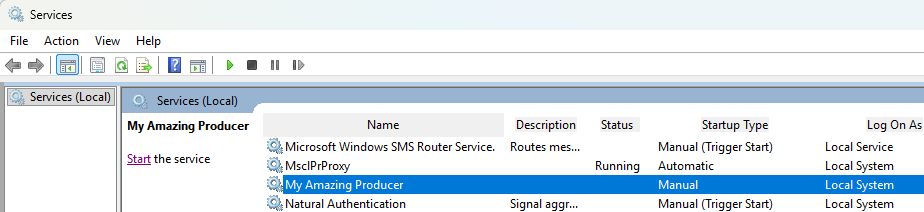
After the ESP is installed as a Windows service, it is displayed in the Services application with the same name as the one specified in the Producer name parameter, as shown in the following image.
The Producer can be installed multiple times with different names and configurations for different systems.
By default, the ESP service is installed as a Manual start‑up type in a Stopped state. It has a command line with the same parameters as it had when installed; that is, the configuration file when installed always applies to this service.
The Producer can be started and stopped with this Services application or variations of the sc command; for example, the service can be removed with the following command (when run as administrator).
sc delete "My Amazing Producer"
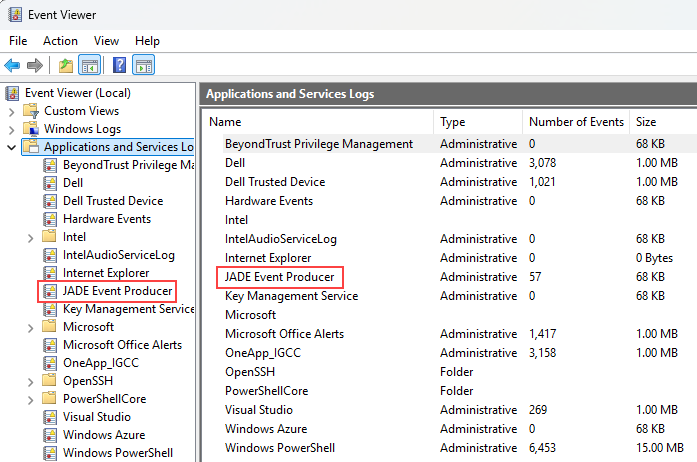
There is no command line output for a Windows service. If there are issues regarding the service itself, error messages can be written to the application event log under JADE Event Producer, which you can view with the Windows Event Viewer, as shown in the following image.
The destination for log messages (including errors) is defined in the Logger or Loggers section of the configuration file.
When the Event Producer starts, logging may not yet have begun, in which case error messages are sent to stderr. When the Event Producer is running as a service, these logging messages are not usually visible. To see messages sent to stderr, redirect the output messages to a file; for example, when installing the service, add a windows redirect command such as the following on the command line.
2>c:\logging\startup_errors.log
In all other ways, the Event Producer behaves in the same ways as it does when it is run from the command line.